
What "fake hi-res" means
A hi-res file is supposed to carry more than CD quality: a higher sample rate, more bits, or both. A fake one has the big numbers in its header but nothing extra inside. There are three kinds, and they're not equally bad:
| What you got | What it really is | How bad |
|---|---|---|
| 24-bit WAV with a cutoff around 16–20 kHz | Made from an MP3 | Bad: the highs are gone for good |
| 96 kHz file that stops sharply at about 22 or 24 kHz | A 44.1 or 48 kHz source, upsampled | Sounds the same as the source, just bigger |
| 24-bit file made from a 16-bit source | Padded with empty bits | Sounds the same as the source, just bigger |
The first kind is the one that matters for DJs. It sounds dull on a big system, and the WAV extension makes you trust it. The other two waste disk space and sometimes money, but your crowd will never hear the difference.
Why stores and sources end up with these files
Most of the time nobody set out to cheat. Somebody in the chain converted a format:
- Distribution often asks for 24-bit WAV, so a 16-bit master gets converted just to fit the requirement.
- Some stores convert on download from whatever master they hold: pick 24-bit WAV and you may receive a conversion.
- Edits, bootlegs, and remixes are often built from MP3 rips of the original, then exported from production software at 24-bit.
- Older catalog where only lossy copies survived gets reissued as WAV.
- A lossy sample or vocal inside an otherwise clean production leaves a partial cutoff wherever it plays.
- Resellers and sharing groups convert files so they look premium.
Signs on the spectrogram
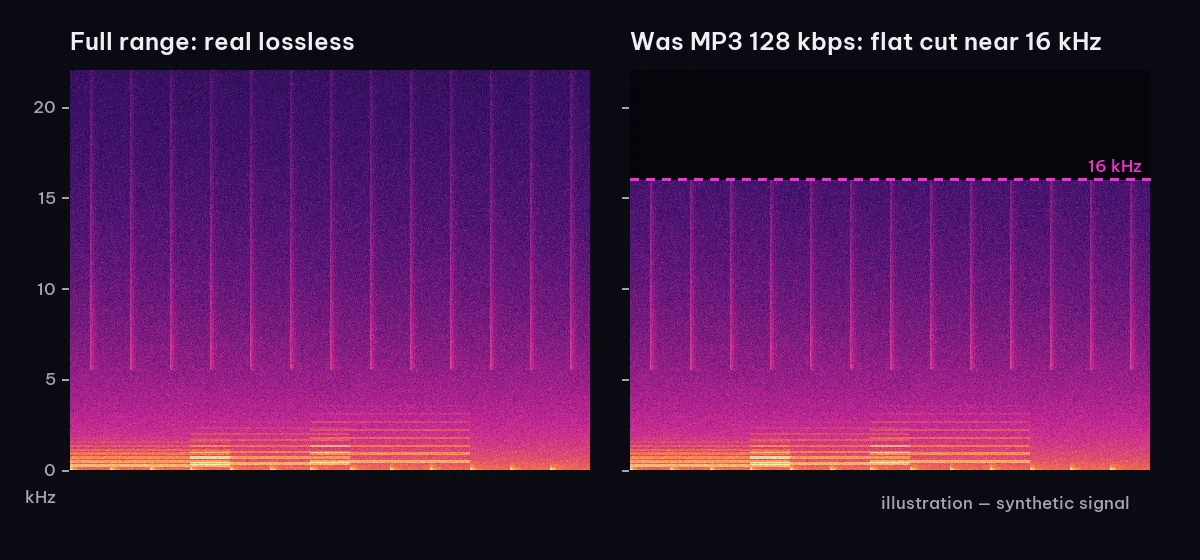
Open the file in any software with a spectrogram, set the frequency axis to linear if you can, and jump to the densest part of the track.
- Know where the top should be. A file can hold sound up to half its sample rate: 22 kHz for 44.1 kHz, 24 kHz for 48 kHz, 48 kHz for a 96 kHz file. The image should run all the way to that line.
- The MP3 fingerprint. A flat wall somewhere around 16–20 kHz, the same height from start to finish, means an MP3 was in the chain, no matter what the bit depth says. The bitrate table in how to tell if an MP3 is really 320 kbps tells you roughly which bitrate.
- The upsampling fingerprint. Sound reaches about 22 kHz (half of 44.1) or 24 kHz (half of 48), then drops off a cliff, with an empty, near-black band all the way to the top of the image. That cliff is the edge of the conversion filter.
- What genuine hi-res usually looks like. Some faint, uneven energy above 22 kHz from cymbal shimmer, synth harmonics, or noise, fading out gradually rather than ending at a ruler-straight line.
- Partial walls. If the cutoff shows up only in certain sections, such as when one vocal or sample plays, that element came from a lossy file. The rest of the track may be fine.
One caution: an empty top band on its own isn't proof. Some genuine recordings have very little up there. The giveaway is a hard, straight edge sitting exactly at one of those familiar frequencies.
What about bit depth?
A spectrogram can't really show bit depth. A 16-bit source padded to 24-bit simply has its last 8 bits set to zero, which only a bit-level analyzer can reveal, and if any volume change or dither was applied during the conversion, even that trace disappears.
The good news is that this case doesn't hurt the sound at all. For playback, 16-bit is plenty, as explained in sample rate and bit depth for DJs. Don't pay extra for it, but don't lose sleep over it either.
What to do with a fake hi-res file
- Check right after buying, while you can still ask for a refund or a replacement.
- Contact the store or label with a screenshot of the spectrogram and the cutoff frequency. Many will replace the file.
- Look for another official source, such as the label's own store or promo copy.
- MP3-sourced and you still need it? Rename or tag it so you remember, and keep it out of the crates you play on big systems.
- Upsampled from CD quality? It sounds the same as the original. Keep it, or convert it down to 44.1 or 48 kHz to save space.
- Don't try to repair it. Converting again, or adding a high-frequency exciter, can't bring the original back; it only paints in new, artificial sound.
FAQ
Is a 24-bit WAV always better than a 320 kbps MP3?
No. A 24-bit WAV made from a 128 kbps MP3 is worse than a genuine 320 kbps MP3. The container adds size, not quality.
Why does my 96 kHz track show nothing above 22 kHz?
Most likely it was produced or mastered at 44.1 kHz and converted to 96 kHz afterward. It sounds exactly like the 44.1 kHz version and takes more than twice the space.
Can I hear a fake hi-res file?
An MP3-sourced one, sometimes: listen to the hi-hats and cymbals on good headphones. An upsampled CD-quality file or a padded 16-bit file, no, because nothing audible was lost. That's why the spectrogram is the right tool.
Is this the same as a fake FLAC?
Same idea, different container. FLAC is just WAV-quality audio packed smaller, so the same signs apply. See how to spot a fake FLAC.
Faster with Taxonomy DJ
The audio quality checks in Taxonomy DJ catch the case that matters and show you the rest:
- Drag WAV, AIFF, or FLAC files onto the Inspector tab, or click Choose files. Nothing is added to your library.
- Hi-res made from an MP3: when a lossless file's frequency cutoff is clearly too low and ends in a sharp edge, the Quality check shows a red Upscaled line with the estimated original quality, such as about 128 kbps. Files sourced from higher bitrates show the cutoff and an estimate like about 320 kbps, so you can judge for yourself.
- Upsampled sample rate: the app doesn't mark this as upscaled, because no audio was lost and the source was still lossless. You can see it yourself, though: the Audio card shows the sample rate, the Quality check shows the frequency cutoff, and the spectrogram runs to the top of the file's range. A 96 kHz file with a cutoff near 22 kHz came from a 44.1 kHz source.
- Bit depth: the Audio card shows the bit depth the file declares. The app doesn't check whether the extra bits carry anything.
It's free on every plan. Drop in your last few "hi-res" purchases and see what's really inside.
Read next: sample rate and bit depth for DJs and how to read a spectrogram.